Make your form
A form is a list of questions. Open a form from Forms to change it.
Start a form
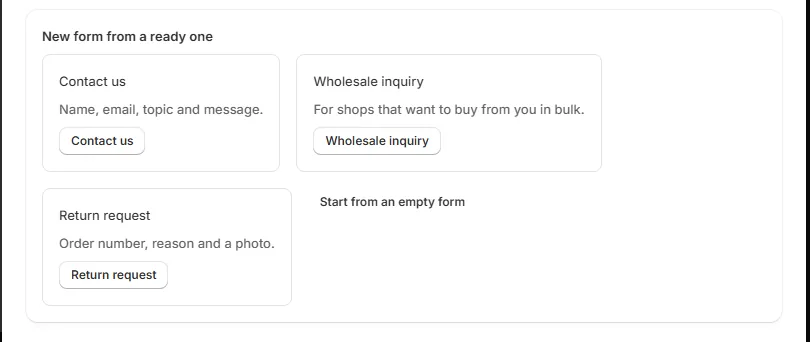
Go to Forms. Under New form from a ready one, pick a ready form. Or press Start from an empty form.
Questions
Press Add a question. Pick its type:
- Short answer, long answer, email, phone, number or date.
- Drop-down list, pick one, or pick any.
- File or photo.
- Agree box, for example to agree that you keep the message.
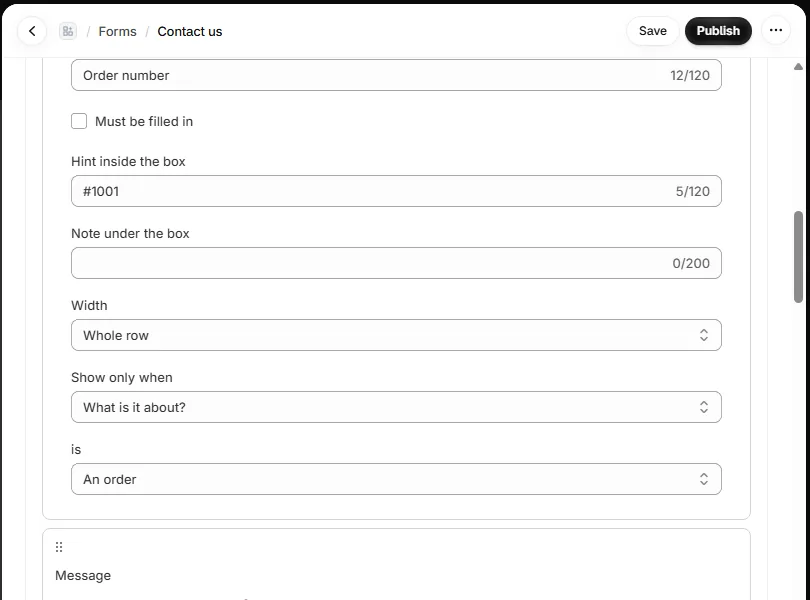
Tick Must be filled in for a question shoppers must answer. Add a hint inside the box or a note under it. Pick Whole row or Half row.
Show a question only when needed
Under Show only when, pick a choice question above it and one answer. The question shows only when the shopper picks that answer.
Files and photos
A file question takes photos (JPG, PNG, GIF, WebP, HEIC) and PDFs. Each file can be up to 10 MB. Only you can open the files, from the message in your inbox.
Move and remove
Drag a question, or use the up and down arrows. The bin removes it.
Button and thank-you words
Change Button words and Thank-you words. Shoppers see the thank-you words after they send.